A11Y WordPress Cookie Plugin Docs
A quick start guide to help you get going with cookie managemnt on your WordPress website
Installation
The free version is available in the WordPress Repository. Click here to find it or search for A11y Cookie Consent Manager in the plugins section of your WordPress Website.
If you chose to go straight to Pro (we thank you!) then you will recieve a link from Freemius along with a licence key and instructions to download and install A11y Cookie Consent Manager.
If you have the free version already installed, the free version will be automatically deactivated when you activate the pro version. You can delete the free version from your website once pro is installed.
Integrations
The integrations section is available to free and pro users.
In this section you can do the following:
- Manage tracking integrations
- Manual Cookie Declerations (Pro only)
- Add custom scripts which can be added to cookie categories for blocking (Pro users can also change the order of custom scripts)
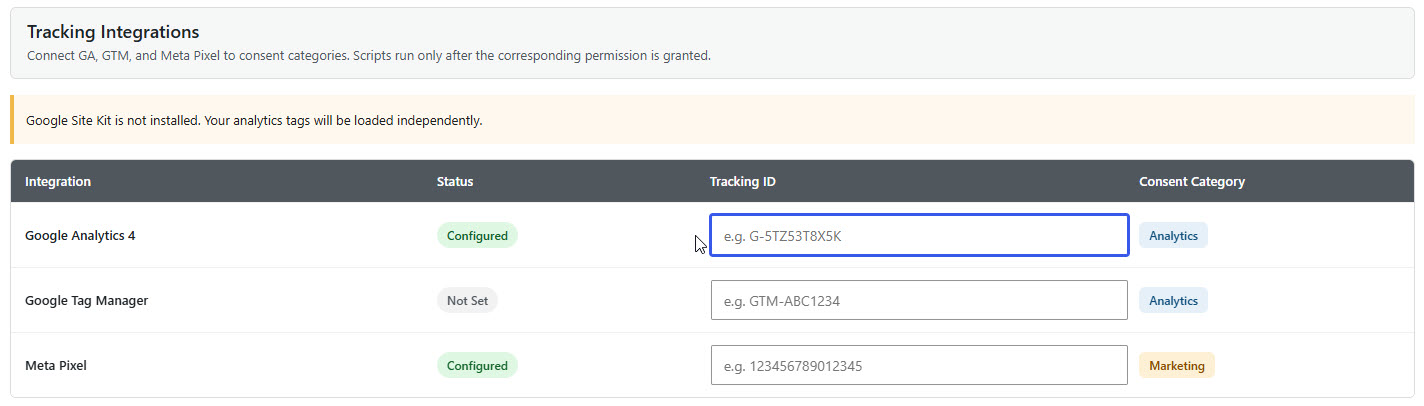
A11y Cookie Consent Manager has direct integrations for Google Analytics, Google Tag Manager and Meta Pixel Tracking.
If you use Google Site kit then you can also use that too.
Managing Integrations
Simply add your tracking code from Google or Facebook and you are set. Nothing more to do!
If you use Google Site Kit, you connect direct to Google via site kit, you do not need to include your tracking code in this section.
Manual Cookie Declarations
Once you have manually scanned your website for cookies, you may come across some cookies that have been added by different plugins or scripts you cannot control.
You can add these cookies here. Each cookie can be added separately.
Include the following information for each cookie:
- Cookie name (ie: _ga)
- Provider (ie: Google)
- Lifespan (ie: 2 years)
- Category (Dropdown with 3 choices)
- Description (Describe what your cookies does)
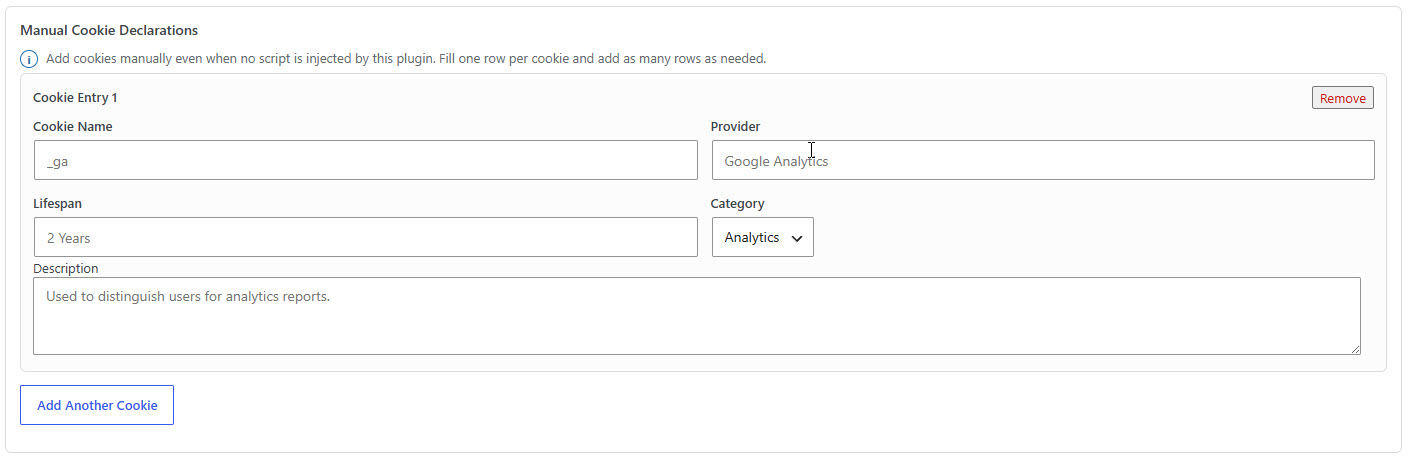
These cookies will be automatically removed when the user chooses to deny those cookies or category. This is a pro only feature.
Custom Scripts
You can add any number of custom scripts and include them in the head, body or footer of your website as well as the category for the script to ensure it does not run until the user accepts the category.
If a script is functional, for example on our website we have added an accessibility overlay which adds function to the website but is not a marketing or analytics script, we add it to the essential category.
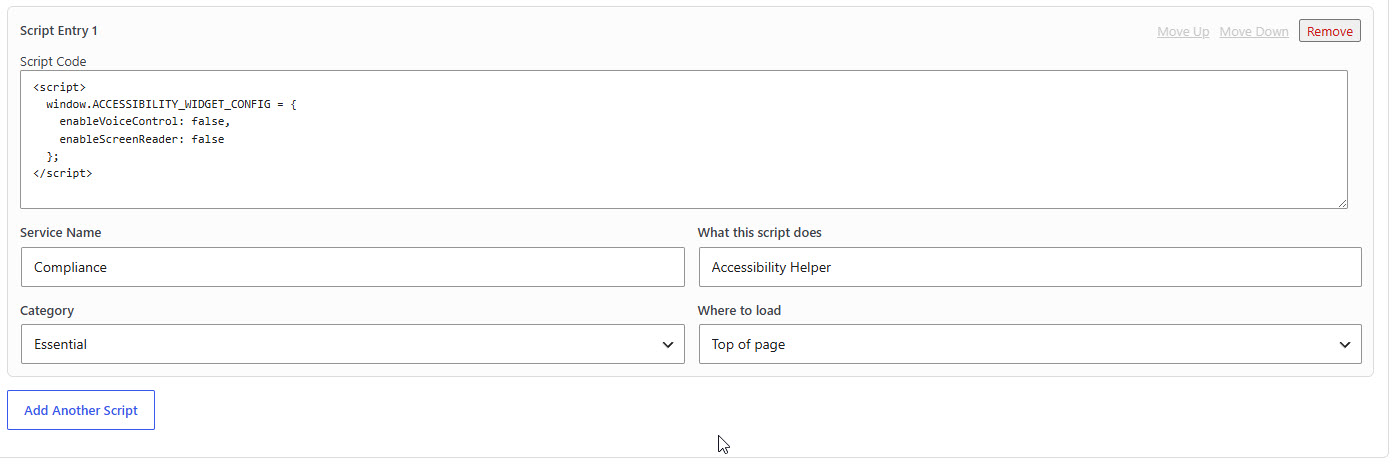
Pro users can sort the order of scripts. Free users must ensure they get the script order right first time.
Consent Analytics
Consent Analytics is a pro feature
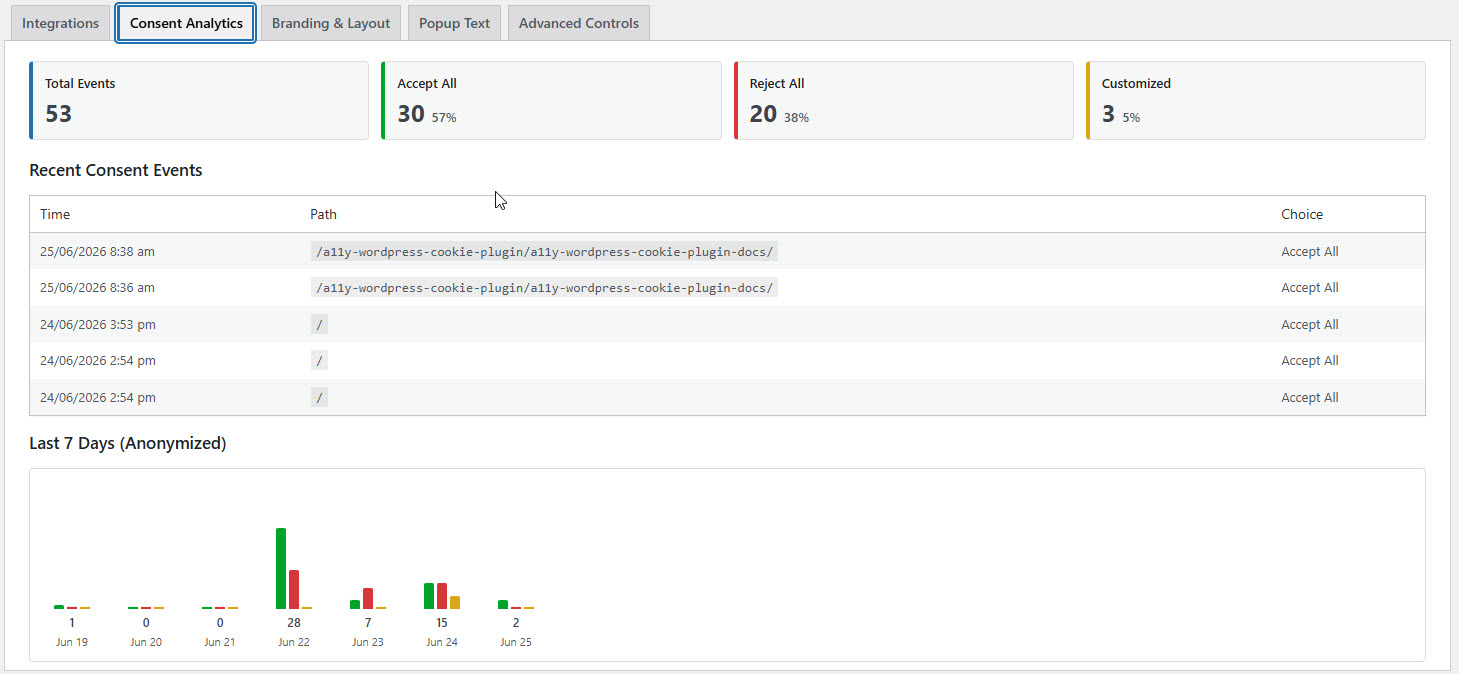
Consent Analytics give you a birds eye view of your users consent preferences. You get just the basics over a 7 day anonymised period.
- Total number of events
- Total number of accept all
- Total number of reject all
- Total number of customised preferences
There is nothing to do or set up here, it just works out of the box. You can choose to enable or disable analytics completely in the advanced tab which is coming up later.
Branding and Layout
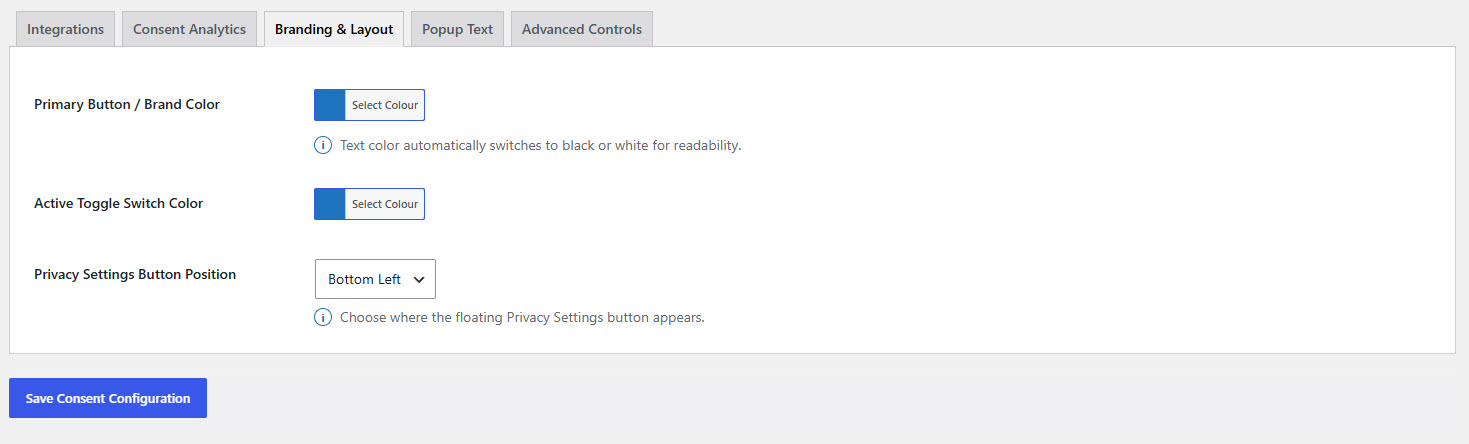
Basic branding is available for the button and radio toggles in the popup. The label of the button will adjust automatically to make it as accessible as possible in terms of contrast without any extra brain power.
You can also choose to move the cookie icon to the right, its default is on the left.
Popup Text
Popup Text is a pro feature
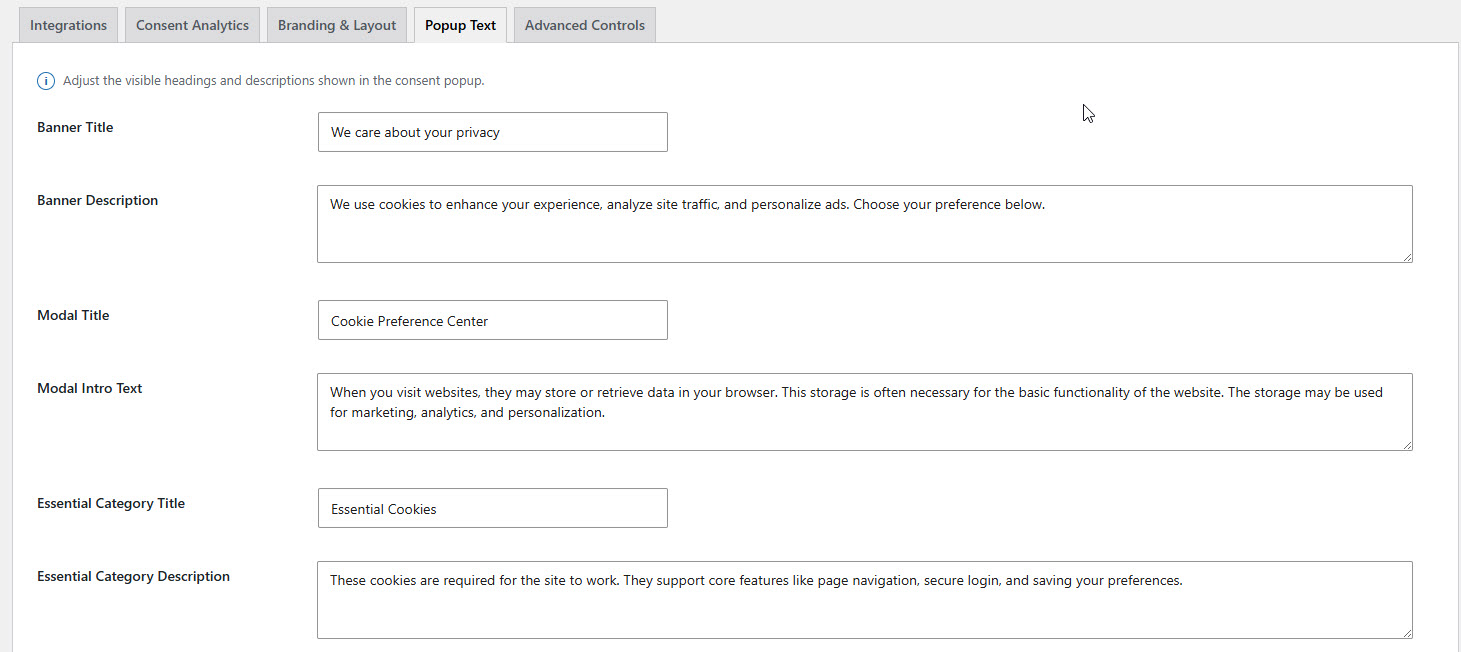
You can adjust the text of the popup and the cookie banners suit your own style.
- Banner Title
- Banner Description
- Modal Title
- Modal Intro Text
- Essential Category Title
- Essential Category Description
- Analytics Category Title
- Analytics Category Description
- Marketing Category Title
- Marketing Category Description
Advanced Controls
Advanced Controls is a pro feature
Enable Consent Log
This switches the Consent Analytics on or off in the Consent Analytics tab.

Custom cookie list
This is a read only text box that shows any custom cookies that you have set in the integrations tag, just for reference.

Hide banner on specific paths
You can choose to hide the cookie banner on any page you choose, just add the URL here, without the domain name.

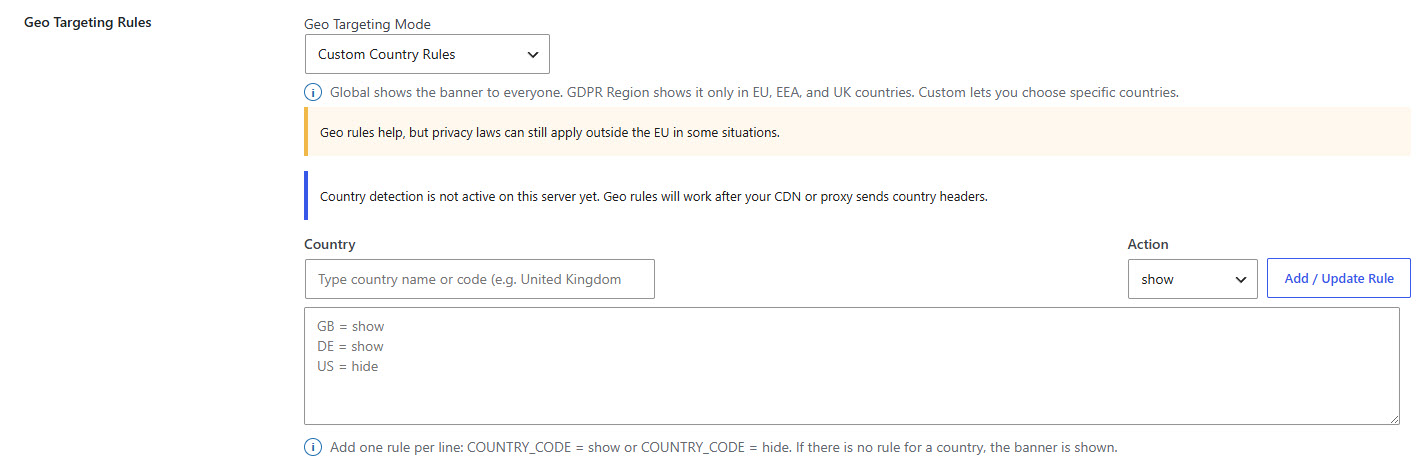
Geo Targeting Rules
You can show the banner:
- Everywhere
- GDPR Regions
- Custom Countries
Remember that privacy laws still apply outside the EU
IFrame Blocker
You can block iframes from being displayed until a user accepts marketing cookies.
This is disabled by default, to enable it use the toggle and add your domains.

Consent Version
If for any reason, you decide to change your policy, you can increase the policy version number. This will force your users to consent once more. If you have increased the number, you can decrease it next time. As long as the number changes that is all that matters.

Import / Export Settings
Very useful setting for multisite licence holders. If you have a few sites that you need to add the cookie widget to, you can export the settings from the original site and import the provided file into each site and all settings will be retained. No need to adjust colours or banner text changes!

How to find cookies on your website
If you are non technical and want a easy to use browser extension that list out your cookies, install Global Cookie Manager into chrome or edge.
Once you install it you will see an icon like the below in your browser.
As soon as you click that icon, it will display all your cookies. You can then export them and use that information to populate your plugin.
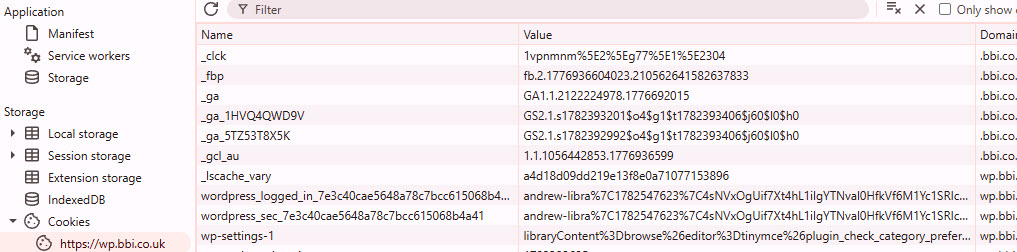
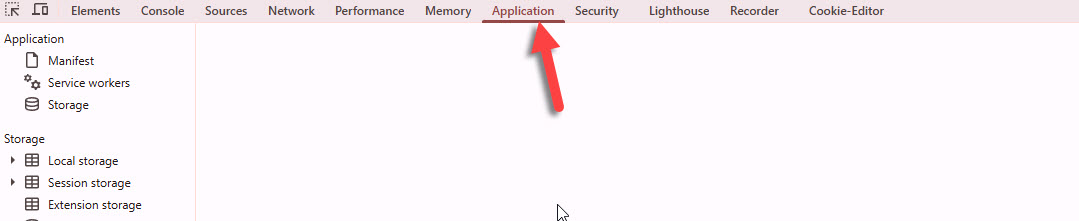
If you prefer to go technical, press F12 when you have visited your webpage.
This will bring up dev tools
Click on the application tab that appears in the list.
Then on the left, click on the cookies listing.
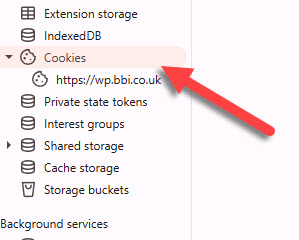
All of your cookies will be revealed to you.